Connect existing Chrome bookmarks for a new way to view and organize them.
FastermarkWorkspace
Real product · Sample data · Chinese interface
Scroll sideways to explore the full interface
01 / Existing Chrome bookmarks
Keep your bookmarks.
Find a view that fits.
Real product detail · Sample data · Chinese UI
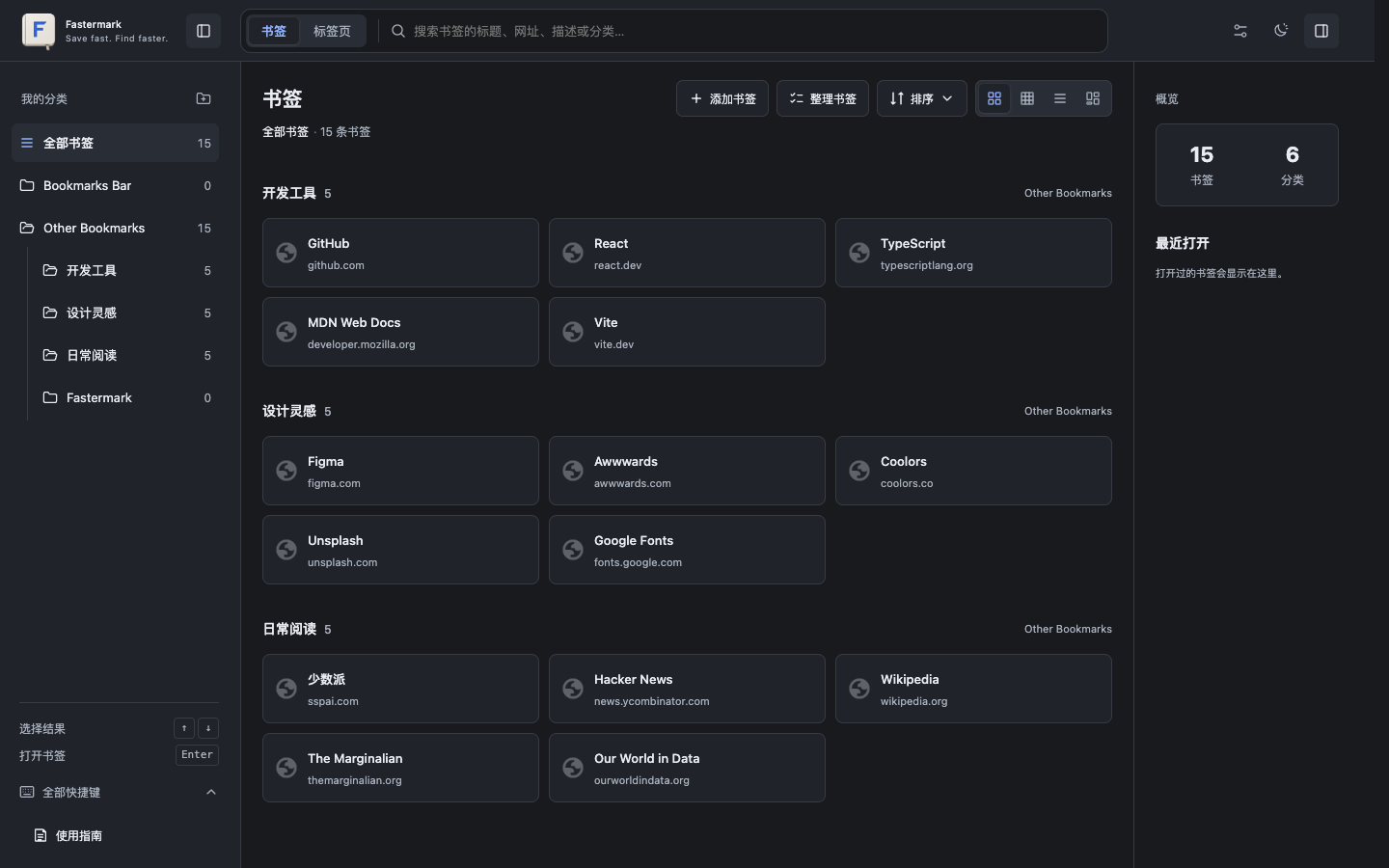
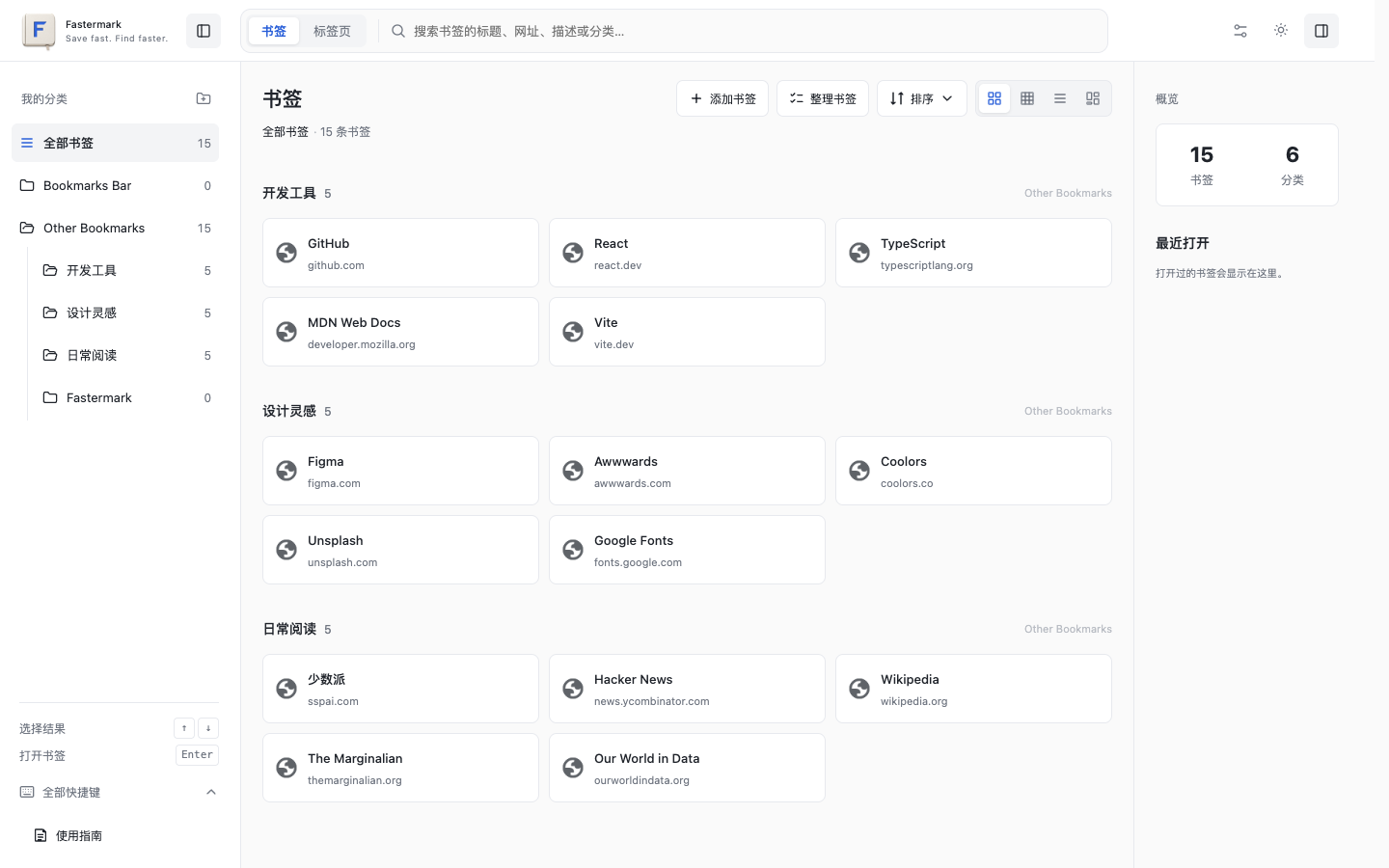
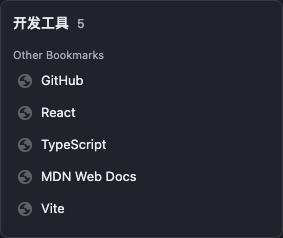
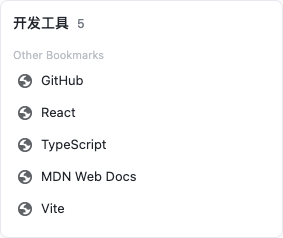
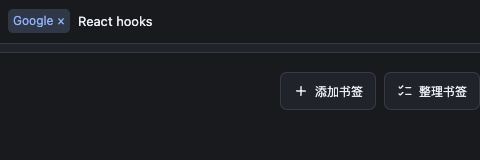
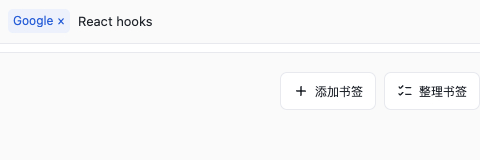
After permission and a merge preview, use the bookmarks you already have. Folders, links, and edits connect to native Chrome bookmarks; cross-device sync follows your Chrome settings. Choose cards, a list, or a category view to browse and arrange your collection.
Use existing native bookmarks and folders
Change views while keeping your data and folders
Search, sort, move selections, and use available undo actions
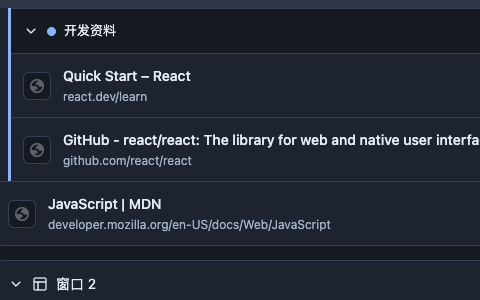
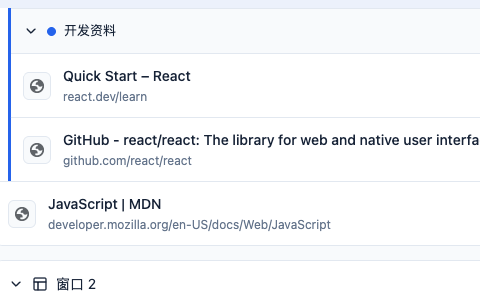
Too many tabs across too many windows? Find and switch to an existing page, then bring related tabs together. Rearrange tabs and create groups in the same workspace.
Search open tabs and switch to an existing page
Drag or move selections to a chosen window
Create groups, organize by site, and clean up duplicates
No Fastermark account.
Connect Chrome when you choose.
Start locally, or connect existing Chrome bookmarks after permission and a merge preview. Cross-device bookmark sync depends on your Chrome account and native bookmark settings.
Local-first
Descriptions, usage counts, appearance preferences, and custom themes stay on this device.
Optional Chrome connection
Browse and edit native bookmarks while retaining their folders, order, and separate identities.
You manage your data
HTML import/export and JSON backup previews help you move and inspect your collection.
Desktop Chrome 120 and later. You can browse this website on a phone; the extension currently targets desktop Chrome.
Does it replace the new-tab page?+
Yes. After installation, new tabs open Fastermark. The toolbar action or the extension icon's context menu can also open the same workspace in a normal tab.
Can I connect my Chrome bookmarks?+
Yes, after permission and a merge preview. Chrome handles cross-device sync of connected native bookmarks; descriptions, usage counts, and local preferences do not sync with them.
Why does it need tab permission?+
tabs reads titles and URLs to save the current page and find or organize open tabs. No page body is read and no page script is injected. bookmarks and tabGroups are requested only for their related actions.
Do I need an account?+
No Fastermark account is needed. The website and extension have no analytics. Submitting a site search sends your query to the site you choose.
How can I transfer or back up data?+
Import/export browser bookmark HTML or export a JSON backup. Merges and replacement restores start with a preview. Preferences, custom themes, and historical archives are managed separately.
Fastermark
Make your next browse
a little more organized.
See how Fastermark fits into your routine. Official installation will be available through the Chrome Web Store.